How to Convert PowerPoint to MP4
 Recommended by the author
 How to & Tips
 Convert Video

 by Kevincy
Updated on Sep 23, 2026
Want to share a presentation as a video, upload it to YouTube, or watch it without PowerPoint? This guide explains three practical ways to turn your slides into MP4. You'll also learn what happens to animations, narration, and slide timings.
If you already have an exported video but need a different format or a smaller file, the free video converter below can help.
A PPTX file stores editable slides, while a PPT file usually comes from an older version of PowerPoint. A PPSX file opens directly as a slide show, but it isn't a video either. Converting your presentation to MP4 makes it easier to share and play on phones, TVs, and computers without presentation software.
Which option fits your presentation?
• Have a recent desktop version of PowerPoint? Use its built-in video export. It's the most convenient way to retain supported animations, recorded narration, and timings.
• Still using PowerPoint 2007? Save the slides as images and assemble them in a video editor. If you need the original animations or spoken presentation, record the slide show instead.
• Don't have PowerPoint installed? Try a presentation-specific online converter for a simple slide-based video, provided the file is safe to upload.
Before converting, check your slide order, aspect ratio, playback of inserted media, and any slide timings. These details are easier to correct in the presentation than in the final video.
Related: Fix videos that won't play in PowerPoint | PowerPoint Video Formats

Convert an Exported PowerPoint Video
Already exported your slides to WMV or another video format? Free HD Video Converter Factory can convert the resulting video to MP4 and adjust its resolution, bitrate, and file size. It cannot convert a PPT, PPTX, or PPSX presentation directly.


PowerPoint for Microsoft 365 and recent desktop releases such as PowerPoint 2024, 2021, 2019, and 2016 can export presentations as video files. This is usually the easiest option when your slides contain transitions, animations, or recorded narration. The steps below refer to the Windows desktop version; menus and available formats can differ on Mac or in other editions.
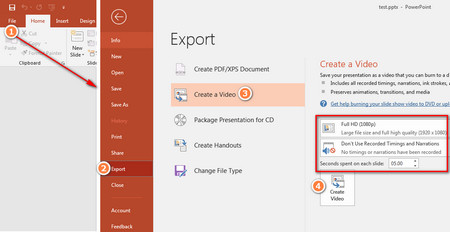 Export a PowerPoint presentation as a video
Step 1. Open your PPTX or PPT file in PowerPoint and save any changes. If you want narration or specific slide timings, record the presentation first using the Record or Slide Show tools available in your version.
Step 2. Go to File > Export > Create a Video. In some versions, you can also find video export on the Recording tab.
Step 3. Choose the video quality, such as Full HD (1080p). Select Use Recorded Timings and Narrations if you've recorded them. Otherwise, set Seconds spent on each slide to control how long each slide appears.
Step 4. Click Create Video. Choose a destination and select MPEG-4 Video (*.mp4) in Save as type, then click Save. Allow the export to finish before opening the MP4.
Using PowerPoint 2010? Its video feature is under File > Save & Send > Create a Video, but it exports WMV rather than MP4. You can convert the resulting WMV to MP4 afterward. PowerPoint 2007 has no built-in video export; see Method 2.
Tip: Export a short test before processing a long presentation. Microsoft notes that certain older linked media, macros, and OLE/ActiveX controls won't be included in the exported video. See Microsoft's video export guide for more details.
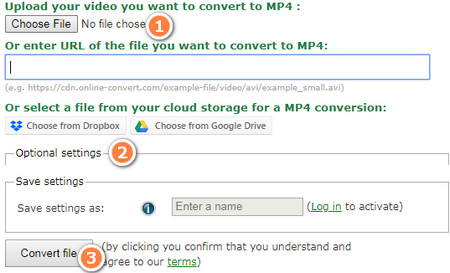 Export Slides to PNG in PowerPoint 2007
PowerPoint 2007 can open and edit presentations, but it cannot directly save them as MP4 or WMV. If you only need a video showing each slide in sequence, export the slides as pictures and combine them in a video editor. The older tutorial used Windows Movie Maker; because that program has been discontinued, the following steps use Microsoft Clipchamp on a supported computer instead.
Step 1. Open the presentation in PowerPoint 2007. Click the Office button > Save As > Other Formats. Under Save as type, choose PNG (good for slides with text) or JPEG, then click Save.
Step 2. When prompted, choose Every Slide. PowerPoint saves each slide as a separate picture in a new folder.
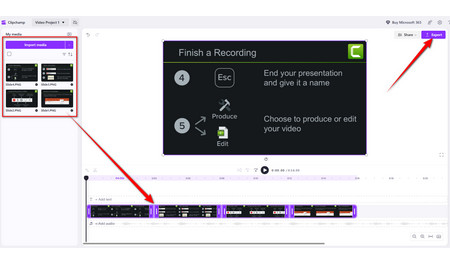 Create a video in Clipchamp
Step 3. Open Clipchamp in a supported browser or its Windows app. Create a video project, select Import media, and add all the slide images. Place them on the timeline in the correct order.
Step 4. Adjust how long each image stays on screen. If you like, add transitions, background music, and a voice-over. Click Export and choose a resolution such as 1080p. Clipchamp saves the finished video as MP4.
Important: Exported slide pictures are static. Original PowerPoint animations, embedded video, slide transitions, and audio are not carried over. You must recreate any effects or add the audio separately in the video editor.
Need to keep your animations and narration? Open the original presentation on a compatible computer, play it in full-screen Slide Show mode, and capture the playback with a screen recorder such as OBS Studio. Set your recorder to capture the presentation window or screen, enable system audio if the slide show includes sound, and record microphone audio if you're presenting live. Run through every slide at the intended pace, stop recording, and review the resulting video. Alternatively, open the older file in a newer desktop version of PowerPoint and use Method 1. Recording the slide show is often preferable when a presentation relies on click-triggered animations.
If the original presentation uses older linked media, make sure its audio and video files are available and play correctly before recording.
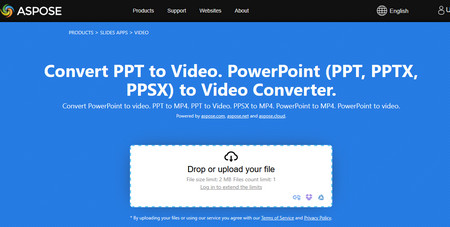 Convert PowerPoint to MP4 Online
If you don't have a desktop copy of PowerPoint or simply need a basic slide video, use a presentation-specific online service. For example, Aspose.Slides PowerPoint to Video Converter accepts PPT, PPTX, and PPSX files and exports MP4.
Step 1. Open the converter in your browser and click Drop or upload your files to upload your presentation.
Step 2. Choose the slide duration and a suitable resolution. Adjust the available transition or audio settings if needed; some options require an account or a paid plan.
Step 3. Click CONVERT. When processing finishes, click DOWNLOAD NOW to save the MP4 and watch it to check the slide order and timing.
Keep in mind: Online services have file-size and slide-count limits that may change. Complex animations, fonts, embedded media, or recorded narration may not look or sound the same as they do in PowerPoint. Don't upload confidential presentations without checking the service's privacy policy and your organization's rules. For sensitive files, use an offline method.
Play the finished video before sharing it. Check that text is readable, all slides appear in the right order, animations and transitions work as intended, and narration stays in sync. MP4 with H.264 video and AAC audio is a practical choice for broad playback compatibility.
If an older PowerPoint version produced WMV or your MP4 is too large, WonderFox Free HD Video Converter Factory can convert the exported video to MP4 and adjust the video resolution or bitrate. Keep in mind that re-encoding can reduce quality; it cannot restore missing narration, animations, or media from the original presentation.

1. Can PowerPoint 2007 export MP4 directly?
No. Export its slides as images and assemble them in a video editor, record the slide show, or open the presentation in a newer version of PowerPoint that supports MP4 export.
2. What if I have a PPSX file?
A PPSX file is a PowerPoint slide show, not a video. Open it in a compatible PowerPoint version and use video export, or upload it to a converter that explicitly supports PPSX.
3. Why are my animations, music, or narration missing?
Saving slides as pictures removes motion and audio. For PowerPoint export, check that recorded timings and narrations are enabled and that any linked or older media works. If the presentation uses interactive, click-triggered elements, recording the slide show may capture them more reliably.
4. Can I convert a PowerPoint file to MP4 without installing anything?
Yes. An online presentation-to-video converter can do this in a browser, subject to its upload limits and supported features. Avoid uploading private or sensitive slides to an unapproved service.
Wrap-up: If you have a recent version of PowerPoint, use its built-in MP4 export. For PowerPoint 2007, create a simple video from slide images or record the presentation when animations and narration matter. Online conversion is another option for uncomplicated, non-sensitive presentations.

Kevincy joined the WonderFox team in 2014 and has been a senior columnist ever since. With over two decades of experience in the video editing industry, he shares tutorials, tips, and how-to guides on video/audio processing and personal DVD backups. Family-oriented and passionate about helping others, he is dedicated to making video and audio processing easier for readers.


Convert the Exported Video to MP4 or Reduce Its File Size

Free HD Video Converter Factory
Have a WMV video exported from an older PowerPoint version or an MP4 that's too large to share? Convert the finished video to MP4, choose a compatible preset, or adjust video settings. This tool processes video files, not PowerPoint presentations, and re-encoding may affect quality.